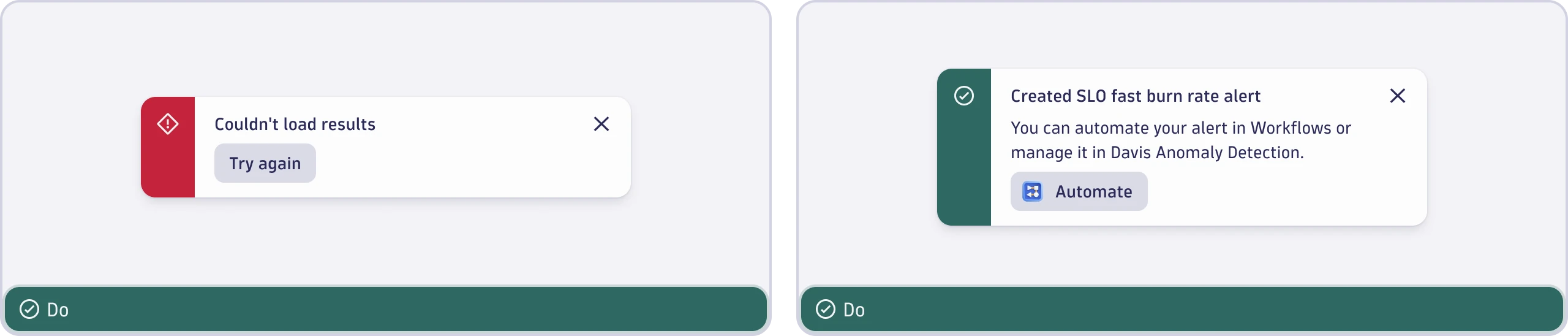
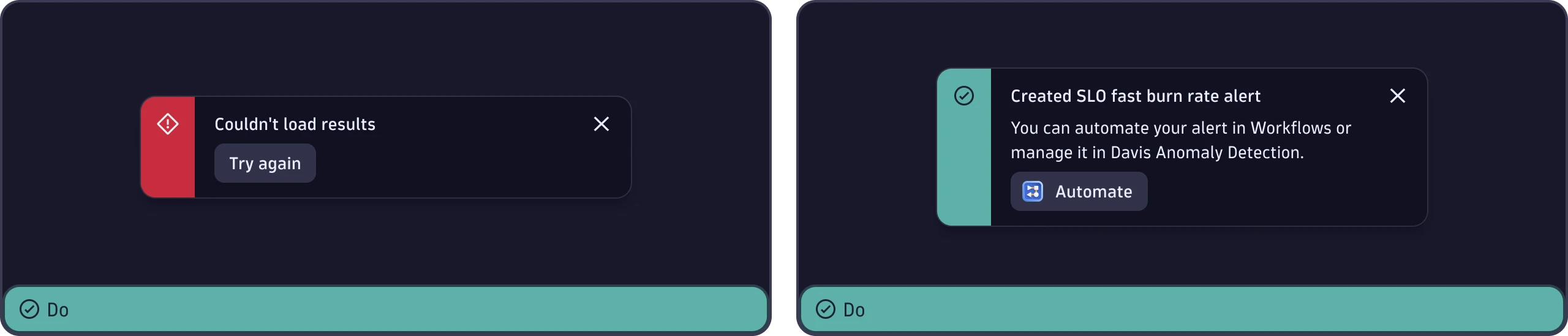
Toast
Use Toast to show users live, time-sensitive messages about system status changes. Toast variants for four different kinds of messages are provided.
When to use
- For subtle but visible feedback, regardless of where the user is in an app. The toast message doesn't need to be related to the user's current context.
- For temporary messages that shouldn't disrupt the user's workflow significantly.
When not to use
- For warnings about impactful changes, such as scheduled system maintenance. Instead, use a MessageContainer.
- For directions at the beginning of a form. Try an inline message in the UI instead.
- To validate simple actions, such as when something is copied to the clipboard or downloaded. If the effect is obvious (or the browser provides feedback), no toast is needed.
Types of toast
Strato provides four types of toast. Each type has unique uses and behaviors, as described below.
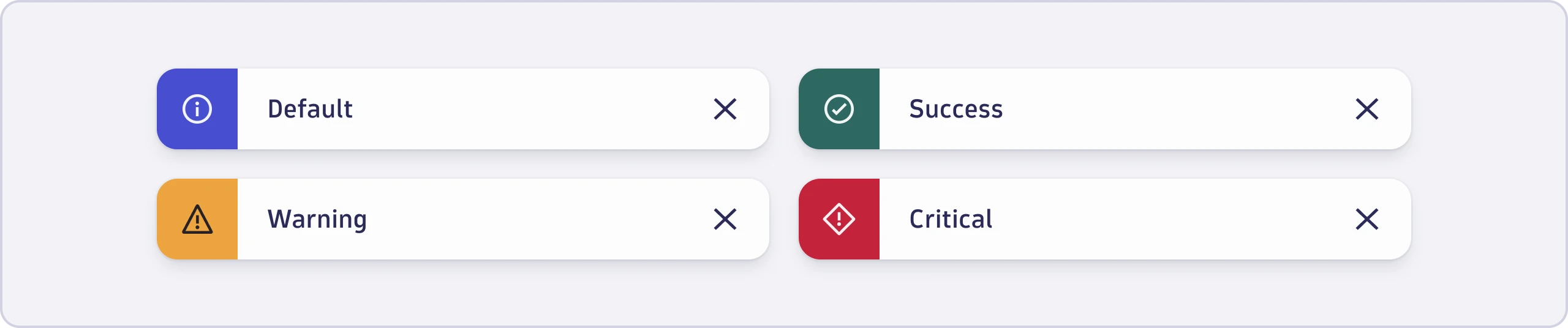
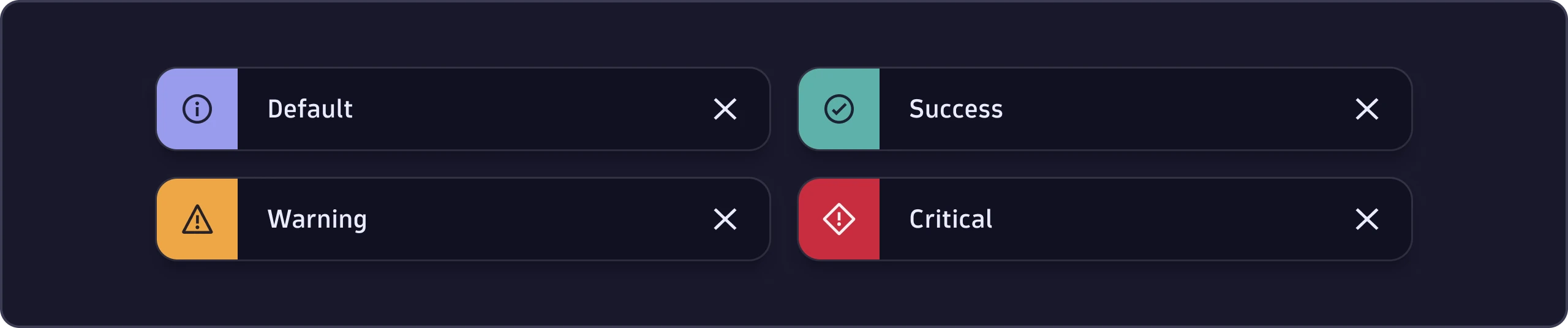
Default toast
- Use for generic information that's neither positive nor negative. For example, a notification of an automatic update that occurred during a process.
- Default toasts close automatically.
Success toast
- Use for positive feedback or to let users know that an action or process was successful. For example, when an access request is triggered and sent to an administrator.
- Success toasts close automatically.
Warning toast
- Use to inform users about a potential issue or something that could cause a problem. For example, an unessential process that failed.
- Warning toasts don't close automatically.
Critical toast
- Use for negative feedback or to let users know about issues that require immediate attention. For example, an essential action or process that failed.
- Critical toasts don't close automatically.
Position
Always place toasts at the bottom left of the screen, unless it would cover essential content in your app.
Content guidelines
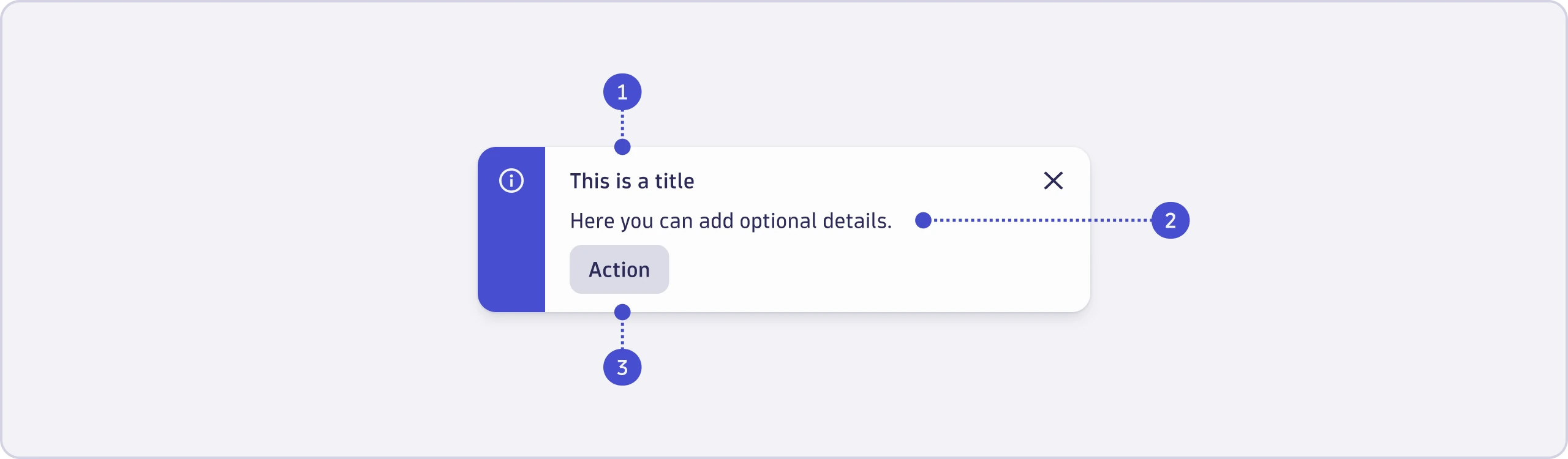
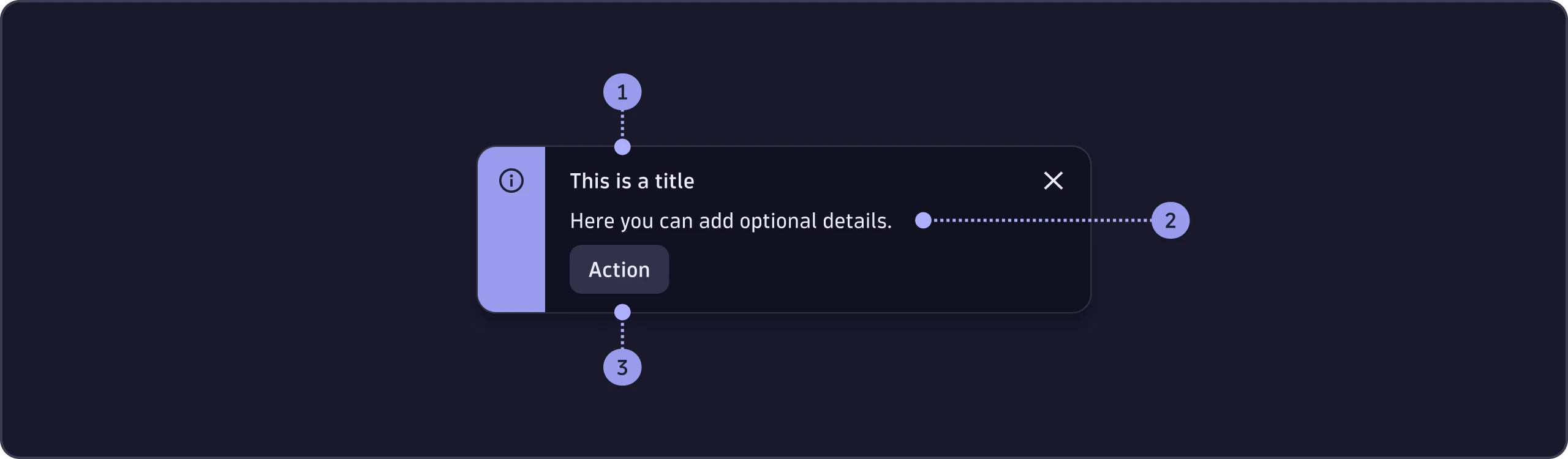
- Title (required)
- Details (optional)
- Action (optional)
General guidelines
- Use sentence case (capitalize only the first word and any proper nouns, such as brand names).
- Avoid unnecessary words such as “the”, “a”, “an”, “successfully”, and “unsuccessfully".
Title
The title is always required. A single line is enough for simple confirmations (mostly default and success toasts) that don't require extra context or actions.
- Keep it short: Five words or fewer.
- Start with a verb in the past tense for completed actions: Verb ends in [-ed] + [item name]. Match it with the trigger action (For example: Delete -> Deleted).


- Don't use end punctuation (no periods or exclamation marks) in titles.


- For errors, start with "Couldn't".


- If you must include file names, place them at the end, unformatted (no quotes, all caps, or symbols).


- For bulk actions, use a number instead of listing items.


Details
Details are optional. Add details to toasts (mostly warning or critical) that need a brief clarification or context, such as why it failed.
- In one to two short sentences, explain what happened or what to do next.
- Punctuate details with a period at the end.


Action button
The action button is optional. Only add buttons to actionable toasts, such as follow-up steps or cross-app actions.
- Limit to one action button per toast.
- Use icons only if they clearly support the action (for example: copy or add).