Checkbox
Use the Checkbox to let users select one or more options from a list, or to
confirm a selection that requires a further action such as clicking a submit
button.
When to use
- When users can select multiple related items from a list.
- When a single selection doesn't trigger an immediate action and requires a further step to confirm, such as clicking a submit button.
- When you need an indeterminate state to indicate that some children of a parent checkbox are checked.
When not to use
- To toggle a setting on and off. Use Switch instead.
Position
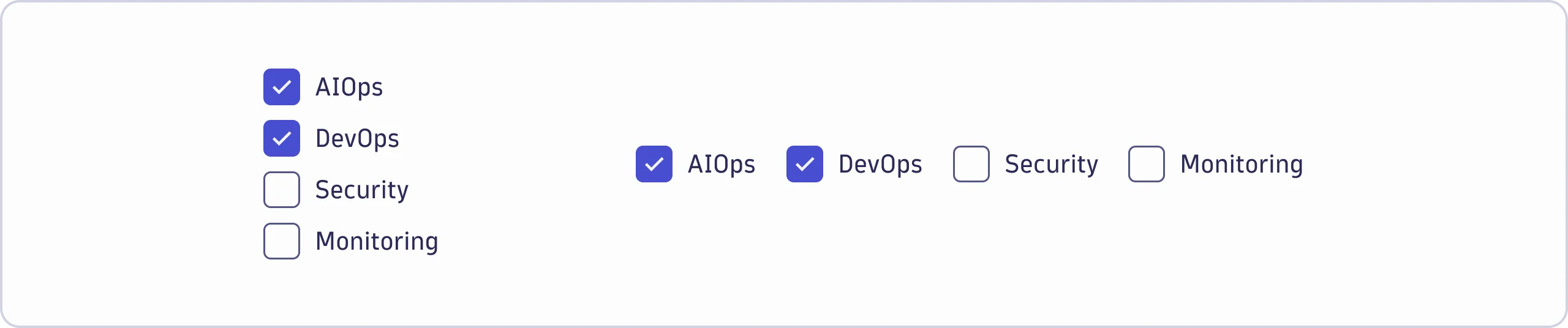

Vertical
- Use vertical alignment in most instances. It's suitable for responsive layouts, a relatively large number of options, or when vertical alignment is consistent in its context, such as in a form.
Horizontal
- If you need a horizontal layout, avoid having the options wrap into a new line.


States
Checkbox supports three states (unchecked, checked, and indeterminate). Use
the indeterminate state to convey that some children of a parent checkbox are
checked. For example, a "Select all" checkbox in a table header.